
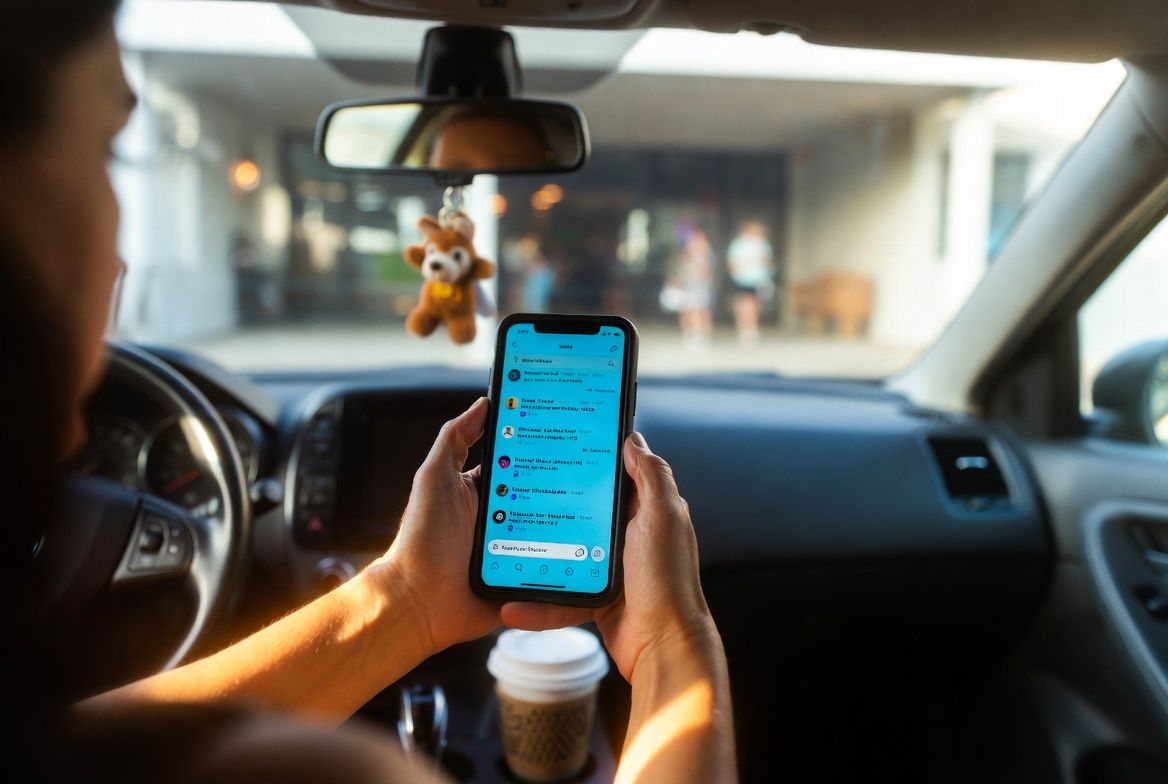
Your phone is already the thing you reach for during school pickups, doctor's office waits, and the fifteen minutes before your kid wakes up from a nap. The question is whether you can actually get meaningful work done on it, or whether you're just creating more stress by pretending you can.
When your phone becomes your desk
Mobile work makes sense in specific situations. Not all situations. The goal is not to work from your phone all day. The goal is to handle the right tasks during the right windows so your laptop hours stay focused on the work that requires a full screen and uninterrupted thought.
Three scenarios where phone work genuinely helps: responding to Slack messages while waiting in the school pickup line, reviewing and approving documents during a pediatrician visit (the waiting room, not the appointment), and triaging email during nap transitions when sitting down at a desk isn't happening. These are real windows, usually 10 to 25 minutes each, and they add up.
The scenario where phone work hurts: trying to write anything longer than three sentences, edit spreadsheets, or participate in a meeting while simultaneously supervising a child. That's not multitasking. That's doing two things poorly at once.
Apps that solve actual problems
The mobile app landscape is enormous and most "best apps" lists just name everything popular. Here is a shorter, opinionated list based on what actually works on a phone screen.
For messages and quick responses: Slack and Microsoft Teams both have solid mobile apps. Slack's is slightly better for quick replies because the notification threading is cleaner. If your company uses Teams, the mobile app has improved enough to be usable, though it still feels heavier than it needs to.
For task management: Todoist is the cleanest mobile task app available right now. You can add tasks with natural language ("email Sarah Tuesday 9am") and it figures out the scheduling. TickTick is a strong alternative if you want a built-in timer to track how long tasks take.
For notes you'll actually find later: Notion on mobile is usable but cramped. For quick capture on a phone, Apple Notes or Google Keep win on speed. Don't try to build a complex Notion database from your phone. Capture the thought, organize it later at your desk.
For meetings you can't physically attend: Zoom's mobile app works. Turn off self-view to save battery and reduce self-consciousness. If you're listening in from a parking lot, mute yourself and use the chat to contribute. Nobody needs to hear your car's climate control system.
For scanning documents when the printer is buried under craft supplies: the built-in document scanner in Apple Notes or Google Drive handles this well enough. Skip the third-party scanner apps cluttered with ads and upsells. Use what's already on your phone.
The notification problem
Here is the honest part. The same phone that lets you knock out quick tasks from the pickup line also buzzes at 8pm with a Slack message from your manager. A FlexJobs survey found that 85% of workers rank remote work flexibility as their top priority when evaluating jobs, but the flip side of that flexibility is that work follows you into every room and every pocket.
Turning off work app notifications at a set time each day is the single most effective boundary you can create with your phone. On iPhone, Focus modes let you schedule this automatically. On Android, Digital Wellbeing does the same thing. Set it for 6pm or whenever your workday should end. The notifications will be there in the morning. The Slack message at 8pm is almost never as urgent as it feels.
If you struggle with the guilt of not responding immediately, remember this: according to Gallup research, about 52% of U.S. workers are in hybrid roles now, and the most productive among them report having clear start and stop times. Not the fastest response times.
The battery and data reality
Slack, Teams, Zoom, and email syncing will drain your battery by 2pm if you're not careful. Carry a portable charger. A decent 10,000mAh power bank costs $20 to $30 and fits in a diaper bag or purse. This is not glamorous advice, but dead phones don't answer emails.
If you're relying on cellular data for work (hotspotting for your laptop at a sports practice, taking a video call from a parking lot), check your actual data plan before you need it. Most "unlimited" plans throttle speeds after 15 to 30GB. One hour of Zoom on cellular uses roughly 1GB. Two video calls a week from your car adds up faster than you'd think.
This week
Set up a Focus mode or Do Not Disturb schedule on your phone that silences work app notifications after your chosen end-of-day time. It takes three minutes to configure. It saves you from the 9pm Slack scroll that turns a relaxed evening into a low-grade anxiety session about tomorrow's tasks.